

Most keyword research tools are overkill.
You open them, run a report, export a CSV… and still don’t know what to write next.
So I built a simple system inside Google Sheets that does 3 things automatically:
- Finds keyword ideas (Autocomplete)
- Pulls real performance data (GSC)
- Tells you exactly what to write, update, or ignore
No Ahrefs. No SEMrush. No paid tools.
Just a system that turns keywords into actions.
What Is a Keyword Research Template (and Why Google Sheets)?
Template vs Tool – Understanding the Two Intents
Most people confuse two things:
Tools (like Ahrefs or Semrush) -> give you data
Templates -> help you decide what to do with that data
A keyword research template is simply a structured way to:
- Store keywords
- Compare them
- Prioritise them
- Turn them into content
Without this, you’re just collecting keywords with no execution plan.
Why Google Sheets Is the Best Place for Keyword Research
Google Sheets wins for 3 reasons:
- Zero cost – no barrier to entry
- Customisable – build your own workflow
- Automatable – connect APIs, scripts, add-ons
👉 Most paid tools still export data into Sheets anyway.
So you might as well start there.
Download the Working Template (With Scripts)
You can make a copy of the exact sheet used in this guide.
It includes:
- Autocomplete automation
- Search Console integration
- Keyword decision system
Just click “Make a copy” and connect your own site.
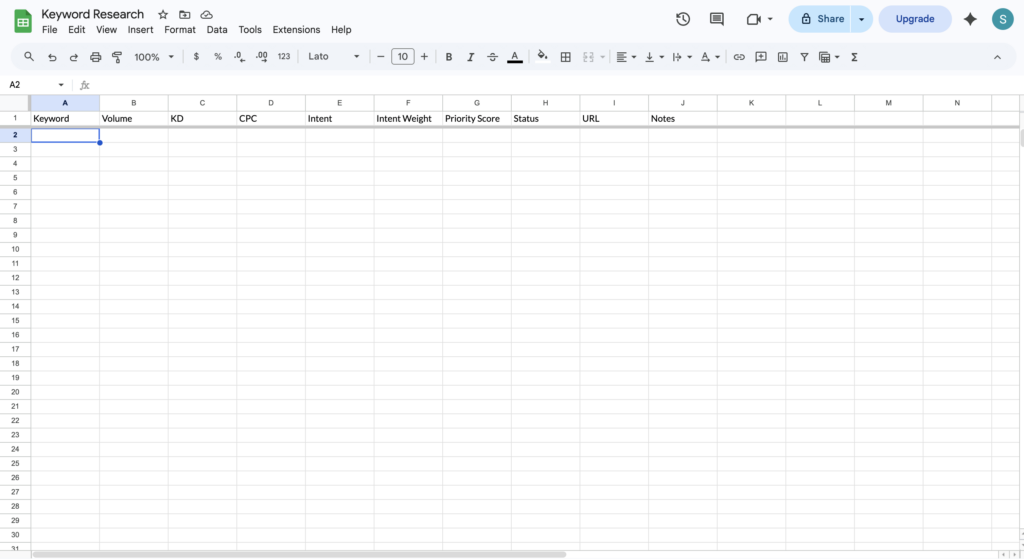
What’s Included – Column-by-Column Breakdown
Your sheet should include:
| Column | Purpose |
|---|---|
| Keyword | What people search |
| Source | Autocomplete or GSC |
| Search Intent | Why they search |
| Impressions | Actual demand |
| Position | Ranking potential |
| Opportunity | Priority level |
| Action | What to do next |
| URL | Existing page (if any) |
How to Use the Template: Step-by-Step
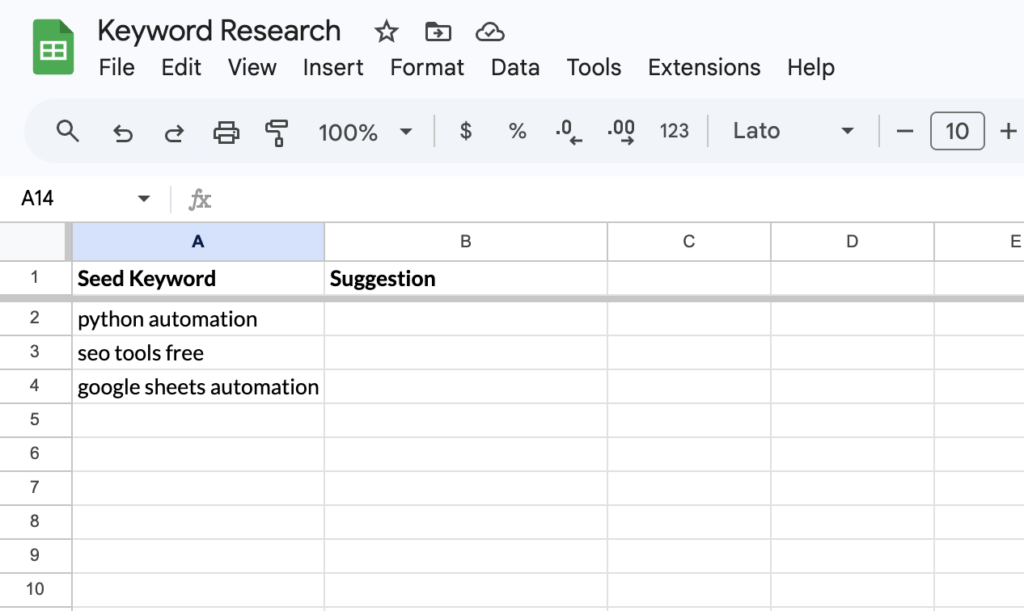
Step 1 – Define Themes and Create Your Seed List (6–12 Keywords)
Start broad.
Example themes:
- Python automation
- SEO tools
- Google Sheets automation
These become your seed keywords.
Step 2 – Expand Keywords Using Google Autocomplete (Automated)
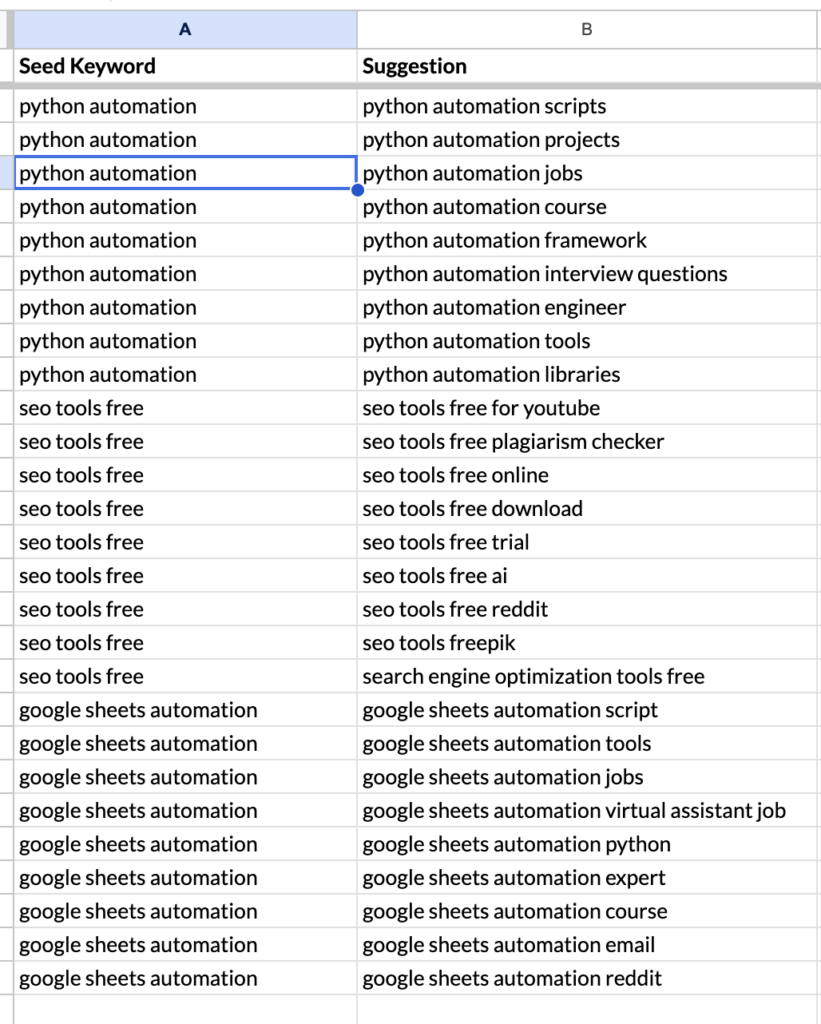
Instead of relying on keyword tools, we use Google’s own suggestions.
Set up a simple script in Google Sheets that pulls autocomplete data for your seed keywords.
This gives you:
- Real search queries
- Long-tail variations
- Questions users actually type
Unlike tools, this is:
- Free
- Fast
- Continuously updated by Google
At this stage, don’t filter anything. You’re building a raw idea layer.
Step 3 – Pull Real Data from Google Search Console
This is where the system becomes powerful.
Instead of guessing demand using volume, you pull:
- Queries
- Impressions
- Positions
- URLs
directly from Google Search Console into your sheet.
This tells you:
- What you are already ranking for
- Where you are close to ranking
- Which keywords already have demand
This replaces the need for traditional keyword tools.
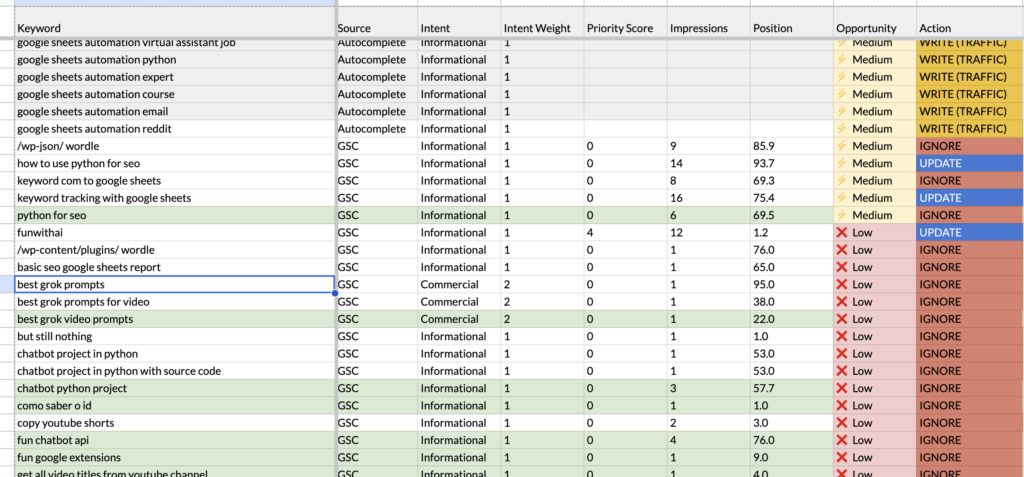
This is what your final output should look like – a sheet that clearly tells you what to write, update, or ignore:
This is the difference between collecting keywords and actually doing SEO.
Instead of guessing what to write, the sheet tells you:
- What to write (new opportunities)
- What to update (existing content)
- What to ignore (low-value keywords)
Not every keyword will have data.
Autocomplete keywords are ideas – they won’t have impressions or positions yet.
That’s expected.
Only GSC keywords represent real, existing performance.
The system works by combining both:
- Autocomplete -> what you could write
- GSC -> what is already working
Step 4 – Classify Every Keyword by Search Intent
Tag each keyword:
- Informational
- Commercial
- Navigational
- Transactional
Example:
“best seo tools” -> Commercial
“how to automate google sheets” -> Informational
👉 Misclassified intent = no rankings.
Step 5 – Build a Priority Score Based on Real Opportunity
Instead of using search volume and keyword difficulty, use:
- Impressions (demand)
- Position (ranking potential)
- Intent (value)
Example logic:
Priority Score = (Impressions / (Position + 1)) * Intent Weight
This prioritises:
- Keywords already getting impressions
- Keywords close to page 1
- Keywords with commercial or informational value
This is more accurate than traditional scoring models.
Step 6 – Decide: Write New vs Optimize Existing Content
This is where most keyword research fails.
For each keyword, check:
- Does a URL already exist? → Optimize or update
- No URL? → Write new content
This turns your sheet from a keyword list into a decision system.
Most keyword research stops at data.
This system goes one step further.
It answers the only question that actually matters:
👉 “What should I do next?”
That’s the difference between collecting keywords and growing traffic.
Free Keyword Research Tools That Work Inside Google Sheets
Google Autocomplete API Script (No API Key Needed)
Pull:
- Real search suggestions
- Long-tail keywords
- Question-based queries
Directly into Sheets.
Final Code:
function getAutocomplete() {
  var ss = SpreadsheetApp.getActiveSpreadsheet();
  var seedSheet = ss.getSheetByName("Seed Keywords");
  var sheet = ss.getSheetByName("Autocomplete");

  var data = seedSheet.getRange("A2:A").getValues();
  var output = [];

  for (var i = 0; i < data.length; i++) {
    var keyword = data[i][0];
    if (!keyword) continue;

    var url = "https://suggestqueries.google.com/complete/search?client=firefox&q=" + encodeURIComponent(keyword);
    var response = UrlFetchApp.fetch(url);
    var suggestions = JSON.parse(response.getContentText())[1];

    for (var j = 0; j < suggestions.length; j++) {
      output.push([keyword, suggestions[j]]);
    }
  }

  sheet.getRange("A2:B").clearContent();

  if (output.length > 0) {
    sheet.getRange(2, 1, output.length, 2).setValues(output);
  }
}
Click “Run” -> Allow permissions -> Your suggestions will auto-fill.
No API key needed.
Google Search Console Native Connector for Sheets
Use:
- Queries
- Clicks
- Impressions
👉 This is your real keyword goldmine.
Final Version:
Note: We pull both query and page to understand which keywords already have content. This is what enables the “write vs update” decision.
function getGSCData() {
  var sheet = SpreadsheetApp.getActiveSpreadsheet().getSheetByName("GSC Data");
  sheet.getRange("A2:F").clearContent();

  var siteUrl = "sc-domain:funwithai.in";

  var url = "https://searchconsole.googleapis.com/webmasters/v3/sites/"
            + encodeURIComponent(siteUrl) + "/searchAnalytics/query";

  var payload = {
    startDate: "2026-04-01",
    endDate: new Date().toISOString().split("T")[0],
    dimensions: ["query", "page"],
    rowLimit: 1000
  };

  var options = {
    method: "post",
    contentType: "application/json",
    headers: {
      Authorization: "Bearer " + ScriptApp.getOAuthToken()
    },
    payload: JSON.stringify(payload)
  };

  var response = UrlFetchApp.fetch(url, options);
  var data = JSON.parse(response.getContentText());

  if (!data.rows) return;

  var output = data.rows.map(function(row) {
    return [
      row.keys[0], // keyword
      row.keys[1], // URL
      row.clicks,
      row.impressions,
      row.ctr,
      row.position
    ];
  });

  sheet.getRange(2, 1, output.length, 6).setValues(output);
}
Combine Autocomplete + GSC into One Keyword System
This script merges Autocomplete and GSC keywords into one master list.
It removes duplicates and combines:
- New ideas (Autocomplete)
- Real performance data (GSC)
Run this after both scripts to get your final keyword universe.
function buildMasterKeywords() {
  var ss = SpreadsheetApp.getActiveSpreadsheet();

  var autoSheet = ss.getSheetByName("Autocomplete");
  var gscSheet = ss.getSheetByName("GSC Data");
  var masterSheet = ss.getSheetByName("Keyword Research");

  masterSheet.getRange("A2:B").clearContent(); // ✅ clear both cols

  var output = [];
  var seen = new Set();

  // Autocomplete
  var autoData = autoSheet.getRange("B2:B").getValues();

  autoData.forEach(function(row) {
    var keyword = row[0];
    if (!keyword) return;

    if (!seen.has(keyword)) {
      output.push([keyword, "Autocomplete"]);
      seen.add(keyword);
    }
  });

  // GSC
  var gscData = gscSheet.getRange("A2:A").getValues();

  gscData.forEach(function(row) {
    var keyword = row[0];
    if (!keyword) return;

    if (!seen.has(keyword)) {
      output.push([keyword, "GSC"]);
      seen.add(keyword);
    }
  });

  if (output.length > 0) {
    masterSheet.getRange(2, 1, output.length, 2).setValues(output);
  }
}
The Shift: From Keyword Research to Content Decisions
Traditional keyword research focuses on:
- Volume
- Difficulty
- CPC
But this approach has limitations:
- Volume is often inaccurate
- Difficulty is estimated
- CPC doesn’t guarantee traffic
This system uses:
- Google Autocomplete → idea generation
- Google Search Console → real demand
- Sheets → decision logic
Instead of guessing what to write, you:
- Identify existing opportunities
- Improve what already ranks
- Create content only when needed
This is closer to how real SEO workflows operate.
How to Find and Fix Keyword Cannibalization in Google Sheets
Steps:
- Filter duplicate keywords
- Check URLs
- Merge or reassign
👉 One keyword = one page.
Keyword Research Template vs Paid SEO Tools – What’s Actually Free in 2026?
Free Tiers Breakdown
- Semrush -> limited queries
- Ahrefs -> very restricted free version
- Ubersuggest -> partial access
When You Don’t Need Paid Tools
You don’t need them if:
- You’re starting out
- You focus on long-tail keywords
- You use Sheets + GSC properly
Frequently Asked Questions
Can I do keyword research in Google Sheets without any paid tools?
Yes. You can combine Google Sheets, Google Search Console, and Google Keyword Planner to build a complete keyword research workflow. Sheets helps you organise and prioritise, Search Console shows real performance data, and Keyword Planner gives rough volume estimates. Together, this is enough for most websites.
What is the difference between search volume and keyword difficulty?
Search volume tells you how many times a keyword is searched per month — it measures demand. Keyword difficulty estimates how hard it is to rank based on competition. A keyword with high volume and low difficulty is ideal, but for smaller sites, it’s better to target lower competition keywords even if the volume is smaller.
How many keywords should be in a keyword research template?
Start with 50-100 keywords to keep things manageable. As you scale your content, this can grow to 500+ keywords. The goal is not volume, but clarity – each keyword should lead to a decision.
How do I use Google Keyword Planner for free without running ads?
You can create a Google Ads account and skip campaign setup. Once inside, go to Keyword Planner -> Discover new keywords. Set your location, export the results, and paste them into your sheet. No ad spend is required.
What is keyword mapping and how do I do it in Sheets?
Keyword mapping means assigning one primary keyword to one page. This avoids multiple pages competing for the same keyword. In your sheet, you can track this using the URL column – if multiple keywords map to the same intent, group them under one page.
Can I use this for multiple websites?
Yes. Just duplicate the sheet and update the GSC property in the script.
How I Use This Sheet Weekly
- Run the scripts (Autocomplete + GSC)
- Sort by Opportunity
- Check Action column
- Pick:
- WRITE -> new content
- UPDATE -> improve pages
- IGNORE -> skip
This takes less than 10 minutes.
Optional Enhancements (If You Want to Go Deeper)
The system above is enough for 90% of use cases.
But if you want to go deeper, you can layer in:
- People Also Ask (PAA)
Extract questions from Google to expand FAQ sections and capture more long-tail traffic. - Keyword Gap Analysis
Compare your site with competitors to find missing topics and content opportunities. - SEO Add-ons (Optional)
Tools like Authoritas can add estimated volume or SERP features — but these are not required.
Important:
These are optional layers. The core system works without them.
Why This System Ignores Volume and Keyword Difficulty
Most keyword research tools focus on:
- Search volume
- Keyword difficulty
- CPC
The problem?
These are estimates – not reality.
This system replaces them with:
- Impressions (real demand)
- Position (ranking potential)
- Intent (value)
Instead of guessing what might work, you act on what is already working.
Conclusion
Most people keep searching for better keyword tools.
That’s the wrong problem.
What you need is a system that tells you what to do next.
This one takes less than 10 minutes a week.
Run the scripts. Check the action column. Execute.
That’s it.
If you build it, you won’t go back to traditional keyword research.
Your support means a lot!
Follow me here on Medium, X, and LinkedIn for more writing on automation, systems, SEO and applied AI.
I share fresh tips every week that can save you time and boost your results.
If you are dealing with brittle automations, slow workflows, or AI projects that never quite stick, feel free to reach out.
Got questions or ideas? Drop a comment – I love hearing from readers and sharing insights.
And don’t forget to share this post with your network if you think it will help them too!
👉 Also read: How to Track Google Rankings in Google Sheets (Free Method)
👉 10 Cool Python Codes to Automate Your Spreadsheet (Free Method)
