

Why Automate Google Sheets with Python?
If you’re still copying data between tools, exporting CSVs, and manually updating reports – you’re basically doing what Python can finish in seconds.
Automation here isn’t just about saving time. It’s about:
- Removing human error
- Running tasks on schedule
- Scaling workflows (100 rows -> 100,000 rows)
What You’ll Build in 10 Minutes
A Python script that:
- Pulls data
- Cleans it
- Pushes it into Google Sheets
- Runs automatically every day
👉 No paid tools. No complex setup.
What can Python automate in Google Sheets?
With Python + Google Sheets API, you can:
- Pull data from APIs → push to Sheets
- Generate SEO reports automatically
- Sync Shopify / analytics / logs into Sheets
- Clean and transform messy data
- Build internal dashboards without touching the UI
TL;DR
- Use gspread + google-auth
- Create service account in Google Cloud
- Share sheet with service account email
- Run Python script to read/write data
- Automate using cron or GitHub Actions
gspread vs pygsheets vs google-api-python-client – which should you use?
Here’s the comparison no one actually gives clearly:
| Library | Ease of Setup | Flexibility | Pandas Support | Maintenance Status | Best For |
|---|---|---|---|---|---|
| gspread | ⭐⭐⭐⭐⭐ | Medium | Good | ⚠️ Community maintained | Beginners + automation |
| pygsheets | ⭐⭐⭐⭐ | Medium | Excellent | ✅ Actively maintained | Data-heavy workflows |
| google-api-python-client | ⭐⭐ | Very High | Manual | ✅ Actively maintained (Google) | Advanced / APIs |
Start with gspread for simplicity. Move to google-api-python-client only if you need advanced API control.
What we’ll use: gspread
Reason: fastest setup + clean syntax + perfect for your use case.
Prerequisites and Setup
Python version and system requirements
Make sure you have:
- Python 3.8+
- pip installed
- A Google account
Check Python version:
python --version
Install required libraries
We are using modern auth (important) – NOT the outdated method.
pip install gspread google-auth pandas python-dotenv
Important:
- oauth2client is deprecated
- Most tutorials still use it -> avoid
Setting Up Google Cloud and Enabling APIs
Step 1: Go to Google Cloud Console
👉 https://console.cloud.google.com/
Step 2: Create a new project
- Click Select Project
- Click New Project
- Name it: Sheets Automation
- Click Create
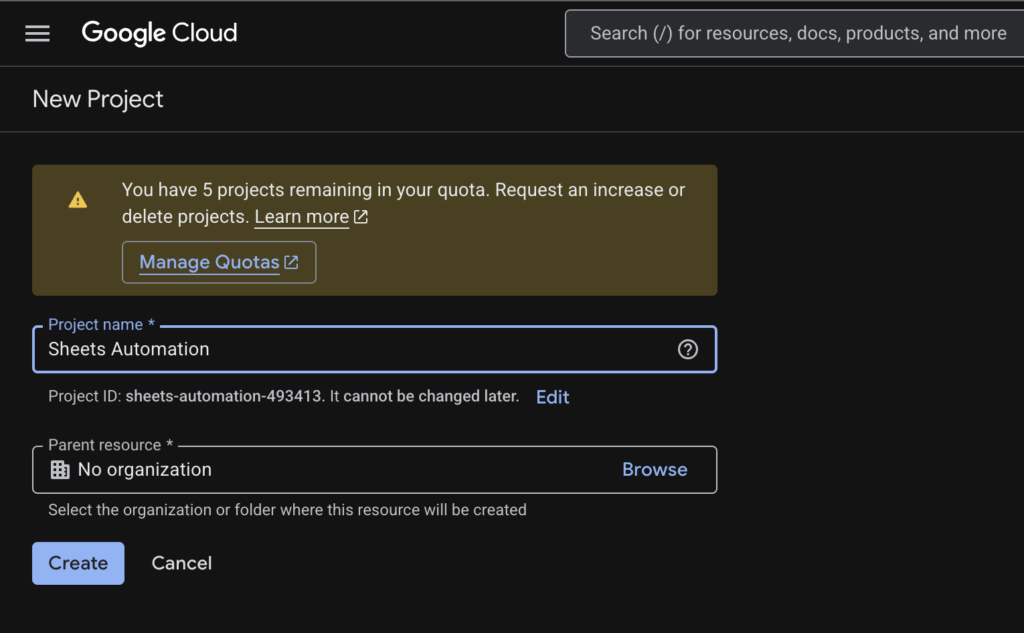
Step 3: Enable APIs
Go to:
APIs & Services -> Library
Enable:
Creating a Service Account and Securing Your Credentials
Step 1: Create Service Account
Go to:
IAM & Admin -> Service Accounts
- Click Create Service Account
- Name: sheets-bot
- Role: Editor
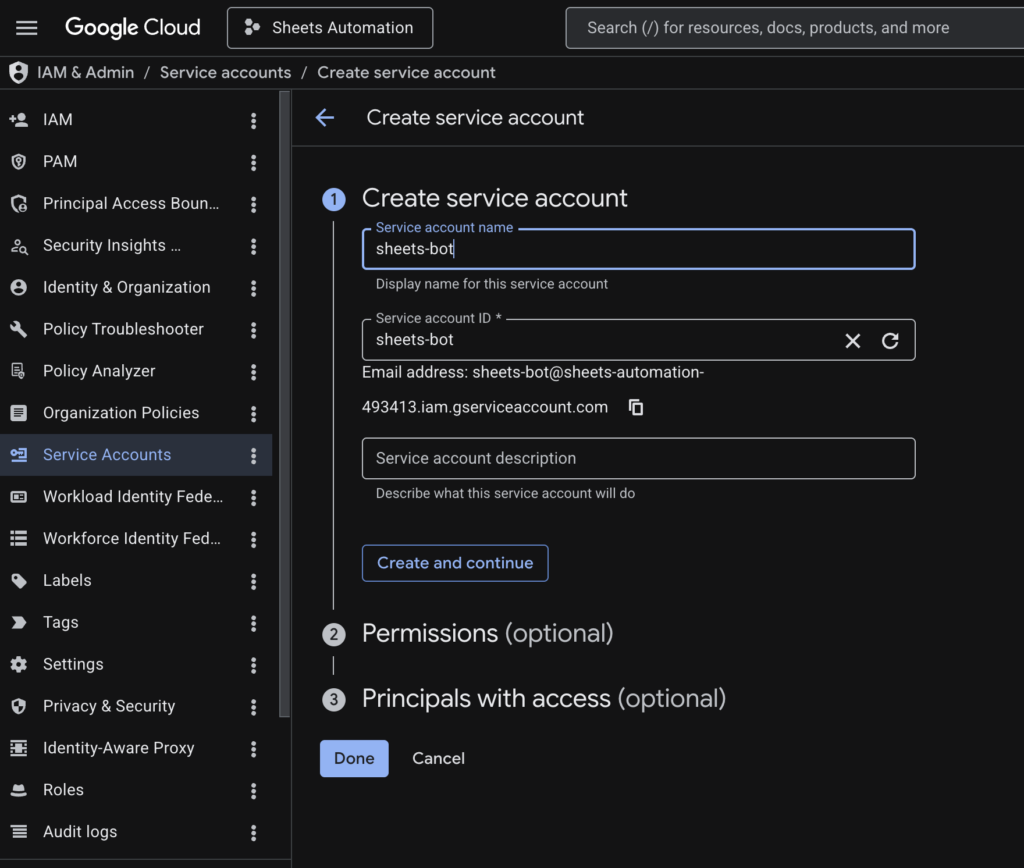
Step 2: Create JSON key
- Click on the service account
- Go to Keys
- Click Add Key -> JSON
- Download file
👉 This file is your access key
Step 3: Store credentials securely
Instead of:
gc = gspread.service_account(filename="credentials.json")
Do this 👇
Create .env file:
GOOGLE_CREDS_PATH=credentials.json
Python code:
import os
from dotenv import load_dotenv

load_dotenv()

creds_path = os.getenv("GOOGLE_CREDS_PATH")
👉 Why this matters:
Keeps secrets out of code
Safe for GitHub
Scalable for teams
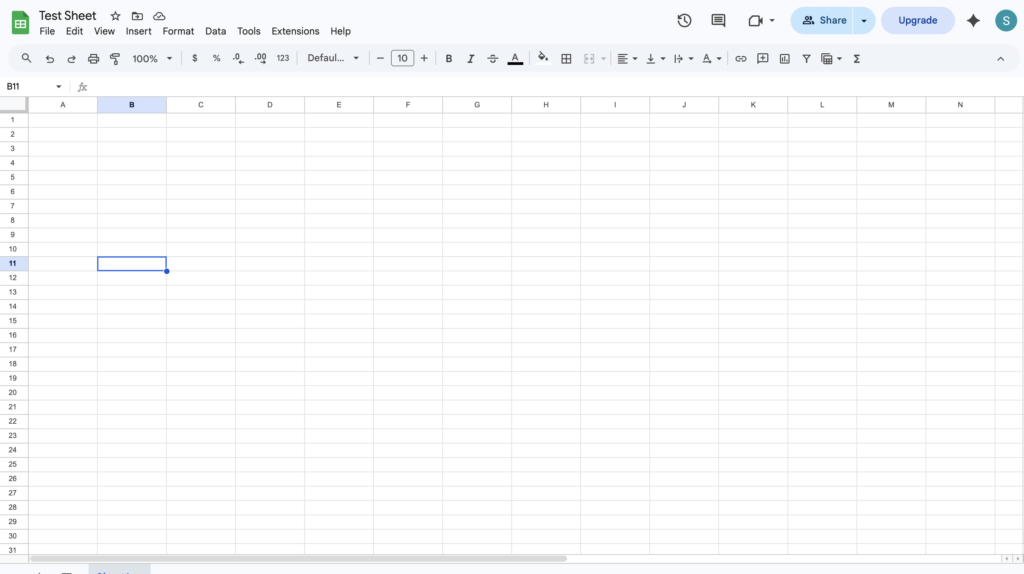
Step 4: Share your Google Sheet
Open your Google Sheet -> Click Share
Paste:
Give:
👉 Editor access
⚠️ If you skip this -> you’ll get:
SpreadsheetNotFound
Connecting Python to Google Sheets (Step-by-Step + Full Script)
Now the real fun starts.
Authenticate using gspread + google-auth
Recommended modern approach using google-auth
import gspread
from google.oauth2.service_account import Credentials
import os
from dotenv import load_dotenv
import pandas as pd

# Load environment variables
load_dotenv()
creds_path = os.getenv("GOOGLE_CREDS_PATH")

# Define API scope
scope = [
    "https://www.googleapis.com/auth/spreadsheets",
    "https://www.googleapis.com/auth/drive"
]

# Authenticate
creds = Credentials.from_service_account_file(creds_path, scopes=scope)
client = gspread.authorize(creds)

# Open Google Sheet
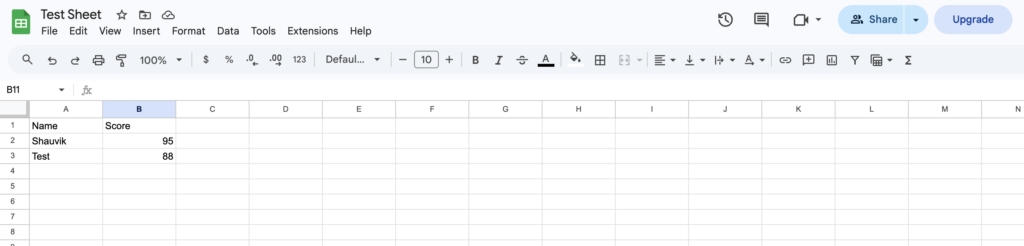
sheet = client.open("Test Sheet").sheet1

# Create sample dataset
df = pd.DataFrame({
    "Name": ["Shauvik", "Test"],
    "Score": [95, 88]
})

# Clear existing data
sheet.clear()

# Upload new data
sheet.update([df.columns.values.tolist()] + df.values.tolist())

print("✅ Data uploaded successfully!")
Note: gspread.authorize() is still valid and works with modern google-auth. Avoid older oauth2client methods.
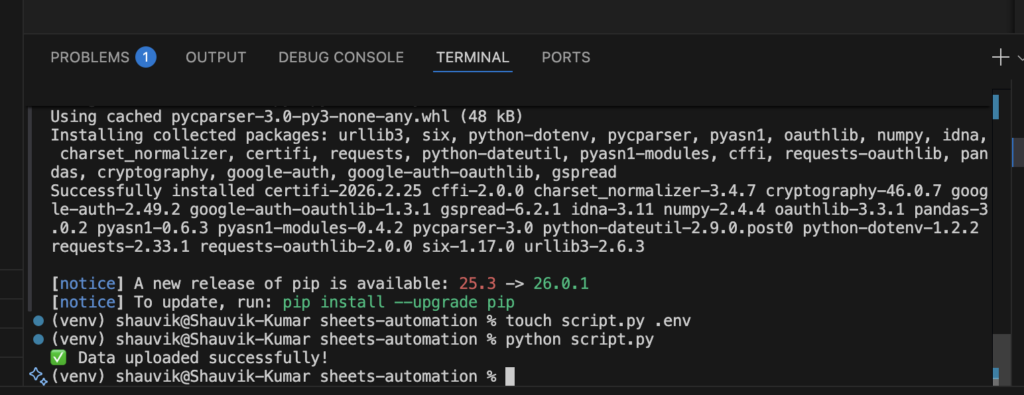
Open your Google Sheet
sheet = client.open("Test Sheet").sheet1
OR using URL:
sheet = client.open_by_url("YOUR_SHEET_URL").sheet1
Select specific worksheet
worksheet = client.open("Test Sheet").worksheet("Sheet1")
Reading Data from Google Sheets with Python
Get all records as a list of dictionaries (best format)
data = sheet.get_all_records()
print(data)
👉 Output:
[
  {"Name": "Shauvik", "Score": 90},
  {"Name": "John", "Score": 85}
]
Get all values as a list of lists (raw format)
data = sheet.get_all_values()
print(data)
Read a specific cell or range
value = sheet.acell("A1").value
print(value)
Download data into a Pandas DataFrame
Using pandas:
import pandas as pd

data = sheet.get_all_records()
df = pd.DataFrame(data)

print(df.head())
Writing and Updating Data in Google Sheets
This is where automation actually becomes useful.
Append a new row
The most common operation -> pushing fresh data.
sheet.append_row(["Shauvik", 95])
👉 This adds a new row at the bottom.
Update a specific cell
sheet.update_cell(2, 2, 100)
👉 Updates row 2, column 2
Update a range of cells
sheet.update("A2:B3", [["Alice", 88], ["Bob", 92]])
👉 Much faster than updating one cell at a time.
Upload a DataFrame to Google Sheets
Using pandas:
import pandas as pd

df = pd.DataFrame({
    "Name": ["A", "B"],
    "Score": [10, 20]
})

sheet.update([df.columns.values.tolist()] + df.values.tolist())
Using batchUpdate for bulk writes (performance)
If you’re pushing 500+ rows -> append_row() will be painfully slow.
Use Google Sheets API batch operations
Example:
requests = [
    {
        "updateCells": {
            "rows": [
                {
                    "values": [
                        {"userEnteredValue": {"stringValue": "Hello"}}
                    ]
                }
            ],
            "fields": "userEnteredValue",
            "start": {"sheetId": 0, "rowIndex": 0, "columnIndex": 0}
        }
    }
]

client.request("post",
    "https://sheets.googleapis.com/v4/spreadsheets/YOUR_ID:batchUpdate",
    json={"requests": requests}
)
Most tutorials don’t cover this – this is what makes your script scalable
👉 Why this matters:
- 10x faster for large datasets
- Reduces API calls
- More scalable
Deleting Data and Managing Sheets
Delete a specific row
sheet.delete_rows(2)
Clear entire sheet
sheet.clear()
Add a new worksheet
client.open("Test Sheet").add_worksheet(title="New Sheet", rows=100, cols=20)
Delete a worksheet
sh = client.open("Test Sheet")
worksheet = sh.worksheet("New Sheet")
sh.del_worksheet(worksheet)
Real-World Automation Example: Weekly SEO Report
Now let’s build something actually useful (this is your differentiation).
Step 1: Fetch data from a CSV or external source
import pandas as pd

df = pd.read_csv("seo_data.csv")
# Example seo_data.csv structure:
# Keyword, Clicks, Impressions
# python automation, 120, 1000
# google sheets api, 80, 900
Step 2: Transform with Pandas
df["CTR"] = df["Clicks"] / df["Impressions"]
df = df.sort_values(by="Clicks", ascending=False)
Step 3: Push results to Google Sheets
sheet.clear()

sheet.update([df.columns.values.tolist()] + df.values.tolist())
Step 4: (Optional) Send a Slack or email notification on completion
You can integrate SMTP / Slack later.
👉 Now you have:
- Automated report
- Cleaned data
- Live dashboard
Error Handling and Troubleshooting
Common errors and fixes
- SpreadsheetNotFound
Cause:
- Sheet not shared with service account
Fix:
- Share sheet with service account email
- APIError: quota exceeded
Cause:
- Too many requests
Fix:
- Use batch updates
- Add delay
- Invalid credentials
Cause:
- Wrong JSON path
Fix:
- Check .env path
API Rate Limits
For Google Sheets API:
- ~60 requests per minute per user
👉 Solution:
- Batch operations
- Cache reads
Retry logic with exponential backoff
import time

for i in range(3):
    try:
        sheet.append_row(["Retry", i])
        break
        from gspread.exceptions import APIError
        except APIError as e:

        time.sleep(2 ** i)
Scheduling Your Python Script to Run Automatically
👉 This is what turns a script into an automation system
Option 1: Cron Job (Mac/Linux)
crontab -e
Add:
0 9 * * * /usr/bin/python3 /path/to/script.py
👉 Runs daily at 9 AM
Option 2: Windows Task Scheduler
- Create Basic Task
- Trigger: Daily
- Action: Start Program → python.exe
- Add script path
Option 3: GitHub Actions for free cloud scheduling
Create file:
.github/workflows/sheets.yml
name: Sheets Automation

on:
  schedule:
    - cron: "0 9 * * *"

jobs:
  run-script:
    runs-on: ubuntu-latest

    steps:
      - uses: actions/checkout@v4

      - name: Setup Python
        uses: actions/setup-python@v5
        with:
          python-version: 3.9

      - name: Install dependencies
        run: pip install gspread google-auth pandas python-dotenv

      - name: Run script
        run: python script.py
👉 This is insanely powerful:
- Runs daily
- No server needed
- Fully free
Why This Guide is Different
Most tutorials:
- Use outdated oauth2client
- Don’t show a complete working script
- Skip automation and scheduling
This guide gives you:
- Modern setup using google-auth
- End-to-end working script
- Real automation workflows (not just examples)
Frequently Asked Questions
Can I use this without coding?
Yes – but tools will limit flexibility. Python gives full control.
Is this safe?
Yes – if you:
Don’t expose JSON keys
Use .env or environment variables
Can I automate SEO reports?
Absolutely – this is one of the best use cases.
Which library should I use?
Beginner -> gspread
Data-heavy -> pygsheets
Advanced APIs -> google-api-python-client
Conclusion
If this saved you time, share it with someone still updating Sheets manually.
Your support means a lot!
Follow me here on Medium, X, and LinkedIn for more writing on automation, systems, SEO and applied AI.
I share fresh tips every week that can save you time and boost your results.
If you are dealing with brittle automations, slow workflows, or AI projects that never quite stick, feel free to reach out.
Got questions or ideas? Drop a comment – I love hearing from readers and sharing insights.
And don’t forget to share this post with your network if you think it will help them too!
👉 Also read: How to Track Google Rankings in Google Sheets (Free Method)
👉 10 Cool Python Codes to Automate Your Spreadsheet (Free Method)
