
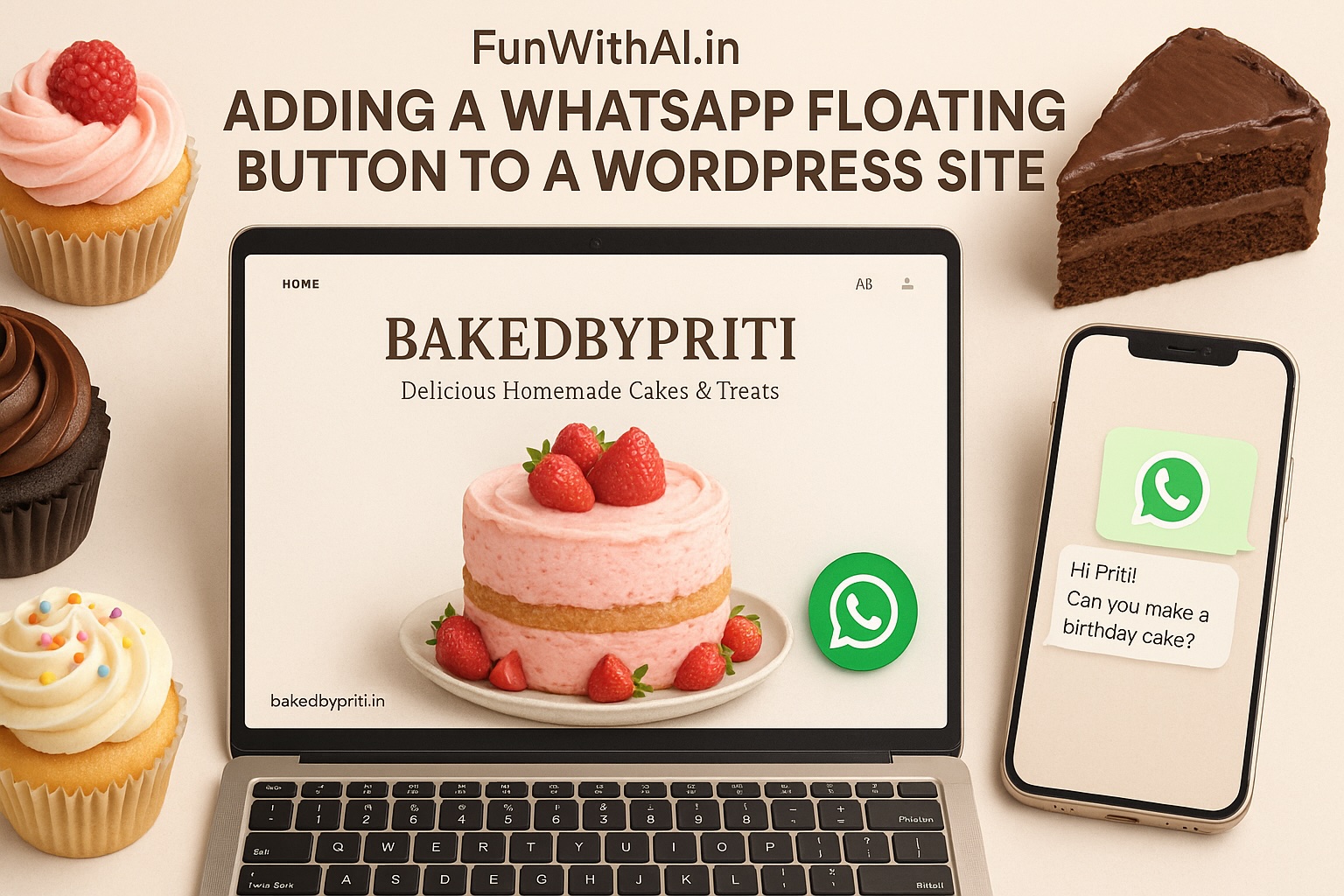
Want to add a WhatsApp floating button to your WordPress website without using any plugin?
This guide shows a simple HTML + CSS method to add a WhatsApp chat button that stays fixed on every page and opens WhatsApp instantly.
It works on desktop and mobile, keeps your site lightweight, and is perfect for small businesses that want faster customer inquiries.
Picture a customer visiting bakedbypriti.in, drooling over my wife’s stunning chocolate layered cake, and wanting to order one for a birthday. They need a quick way to ask about flavors or delivery.
A WhatsApp floating button lets them message Priti directly from WordPress site, turning interest into orders. I’ll show you how to add this button without plugins, keeping it simple and perfect for her baking business. It’s as easy as decorating a cupcake. Let’s get started!
Quick Answer: Add WhatsApp Floating Button in WordPress (No Plugin)
- Upload a WhatsApp icon to WordPress Media
- Add a small HTML + CSS snippet
- Link it to your WhatsApp number using wa.me
- Save and refresh – the button appears site-wide
How to Add a WhatsApp Floating Button in WordPress (Step-by-Step)
Let’s add a button that invites customers to chat about cakes, like a “Message Priti” sign.
Step 1: Choose a WhatsApp Icon
Pick a clear, 60x60px PNG icon for a professional look. Options:
- Upload one to Media > Add New in WordPress and copy the URL.
- Find a free icon on Flaticon or Icons8.
- Or use this: https://i.imgur.com/Gq7GVKT.png.
Step 2: Add the Code
We’ll place the button by editing functions.php. It’s quick and straightforward.
- Open the Theme Editor:
- In your WordPress dashboard, go to Appearance > Theme File Editor.
- Select functions.php from the right.
- Back up your site to be safe.
- Paste the below Code: Add this at the end of functions.php.
- Replace https://wa.me/1234567890 with your business’s WhatsApp number.
- Swap the image URL for your icon’s URL.
- Save the file.
function add_whatsapp_floating_button() {
    echo '<a href="https://wa.me/1234567890" class="whatsapp-float" target="_blank" aria-label="Contact Priti on WhatsApp">
            <img src="https://i.imgur.com/Gq7GVKT.png" alt="WhatsApp" class="whatsapp-icon">
          </a>
          <style>
            .whatsapp-float {
                position: fixed;
                bottom: 20px;
                right: 20px;
                z-index: 1000;
            }
            .whatsapp-icon {
                width: 60px;
                height: 60px;
                border-radius: 50%;
                box-shadow: 0 4px 10px rgba(0, 0, 0, 0.2);
                transition: transform 0.3s ease-in-out;
            }
            .whatsapp-icon:hover {
                transform: scale(1.1);
            }
            @media (max-width: 768px) {
                .whatsapp-icon {
                    width: 50px;
                    height: 50px;
                }
                .whatsapp-float {
                    right: 15px;
                }
            }
          </style>';
}
add_action('wp_footer', 'add_whatsapp_floating_button');
This code places the WhatsApp floating button in the bottom-right corner of your website, making it easily accessible to visitors on every page.
Step 3: Test the Button
- Refresh your site. Look for the WhatsApp icon in the bottom-right corner.
- Click it to confirm it opens WhatsApp with your business’s number.
- Test on a phone to ensure it’s clear and easy to tap.
How to Add a WhatsApp Floating Button to Any Website (HTML Version)
<a href="https://wa.me/YOURNUMBER" class="whatsapp-button" target="_blank">
  💬
</a>

<style>
.whatsapp-button {
  position: fixed;
  bottom: 20px;
  right: 20px;
  background-color: #25D366;
  color: white;
  font-size: 24px;
  padding: 12px 16px;
  border-radius: 50%;
  text-decoration: none;
  z-index: 1000;
}
</style>
Replace YOURNUMBER with your WhatsApp number (including country code).
Why a WhatsApp Button Helps Business
A floating button stays visible as customers browse, making it easy to:
- Take custom cake orders instantly.
- Answer questions about flavors or pricing.
- Build trust with fast, personal replies.
I’ve implemented this exact WhatsApp floating button on my wife’s bakery website Baked by Priti to make it easy for customers to place orders directly via WhatsApp.
Since most users browse on mobile, having a floating button significantly improves conversions — users don’t need to search for contact details.
It’s like having Priti’s bakery counter on every page of bakedbypriti.in, without slowing down the site.
What You Need
- A WordPress site with admin access.
- Working WhatsApp number.
- A 60x60px WhatsApp icon.
- No coding experience required – I’ll guide you step-by-step.
Enhancements Options
Make the button irresistible for your customers:
- Pre-Filled Message: Start the chat with a prompt
<a href="https://wa.me/9711000580?text=Hi Priti! Can you make a custom chocolate cake for my daughter's birthday?" ... >
- Add a Bounce Effect: Draw attention subtly:
@keyframes bounce {
    0%, 100% { transform: translateY(0); }
    50% { transform: translateY(-8px); }
}
.whatsapp-icon {
    animation: bounce 2s infinite;
}
Match the Bakery Vibe: For eg: Use a box-shadow in Priti’s brand colors (e.g., rgba(255, 182, 193, 0.2) for pink).
Will a WhatsApp Floating Button Slow Down Your Website?
No – if implemented using this method, your website speed will not be affected.
Unlike plugins that load extra scripts and styles, this approach uses lightweight HTML, CSS, and a simple link.
This means:
- No additional database load
- No external dependencies
- Faster page load compared to plugin-based solutions
If you care about performance and Core Web Vitals, this no-plugin method is the better choice.
Quick Fixes
- Button Not Showing? Check the image URL and functions.php for errors. Clear your cache if needed.
- Mobile Position Off? Adjust right: 15px in the @media block.
- Link Not Working? Use the international number format.
Bonus Tip: Keep Icons Separate
If the button covers another icon (like a “Go to Top” button), shift it left:
- Change right: 20px to right: 90px in .whatsapp-float.
- For mobile, adjust right: 15px to right: 70px in the @media block.
- Use Developer Tools (right-click > Inspect) to check the other icon’s position and add a buffer (e.g., icon width + 10px).
Plugin vs No-Plugin WhatsApp Floating Button (Which Is Better?)
- Plugins add extra scripts and slow sites
- No-plugin buttons load faster and are easier to control
- Ideal for simple contact and lead generation
Final Thoughts
This WhatsApp button is like a friendly baker’s smile on bakedbypriti.in – it invites customers to chat about their dream cakes. It’s fast, free, and keeps your site lightweight. Want to add buttons for email or Instagram? Use similar code and tweak positions.
Questions? Drop a comment below!
Frequently Asked Questions (FAQs)
How do I add a WhatsApp button to my website without a plugin?
You can add a floating WhatsApp button by inserting a small HTML link and styling it with CSS. In WordPress, this is typically done using the functions.php file or a custom HTML block.
Where should I place a WhatsApp floating button – bottom left or bottom right?
The bottom-right corner is the most commonly used position because users naturally expect chat or support buttons there.
Will a WhatsApp floating button slow down my WordPress site?
No – this method does not use any external scripts or plugins, making it lightweight and performance-friendly.
Can I add a WhatsApp button to a non-WordPress website?
Yes – you can use the same code with basic HTML and CSS on any website, including static sites.
